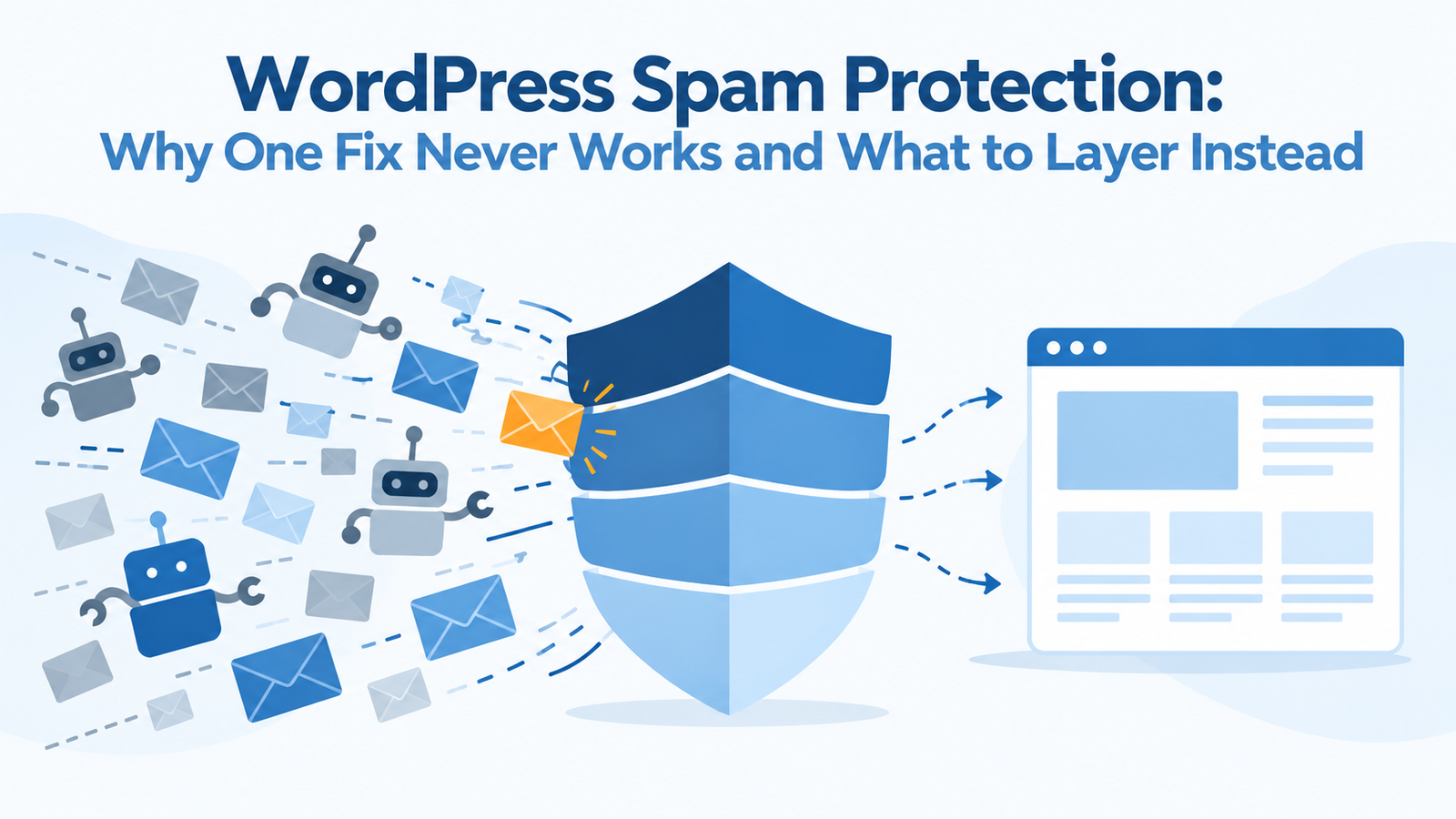
Your inbox fills with fake enquiries. Your comment queue is full of casino links. A hundred strangers just registered on a site that has no members. Good WordPress spam protection stops all three without blocking the real people you want to hear from. This guide covers each entry point: comments, contact forms and registrations. You’ll layer a few free settings with one filter and a firewall, and you can finish most of it this afternoon.
Key takeaways
- WordPress spam protection has to cover three doors, and a fix for one door leaves the other two open.
- Start with the free WordPress settings, then add one filter plugin, never two.
- A honeypot or CAPTCHA alone often fails. Combine a token or timing check, Turnstile and a filter.
- Fake registrations need email confirmation and a CAPTCHA on every sign-up form.
- Back up before you bulk delete anything, and skim the spam folder for real messages first.
Where spam gets into a WordPress site

Bots don’t read your site. They look for forms. An unprotected site is an easy target for spambots that use comments to push fraudulent links, and any form can be hijacked to send mass email from your server, according to Infomaniak’s support guide. That same guide warns that spam can damage your domain’s email reputation and eat into your hosting resources. Solid WordPress spam protection starts by knowing which door the junk is using.
So the cost isn’t only clutter. Fake accounts also clog your user database and skew your customer and email numbers.
Each entry point attracts a different kind of junk, and each needs its own guard:
| Entry point | What the spam looks like | First thing to try |
|---|---|---|
| Comments | Link drops and generic praise | Manual approval and a link limit |
| Contact forms | Sales pitches and gibberish enquiries | The form plugin’s anti-spam setting |
| Registrations | Fake Subscriber accounts | Turn signup off, or confirm email addresses |
Free settings to switch on first

These cost nothing and take about ten minutes. They’re the cheapest layer of WordPress spam protection. They won’t stop every bot, but they clear away the easiest targets.
Discussion settings that matter
Go to Settings > Discussion in wp-admin.
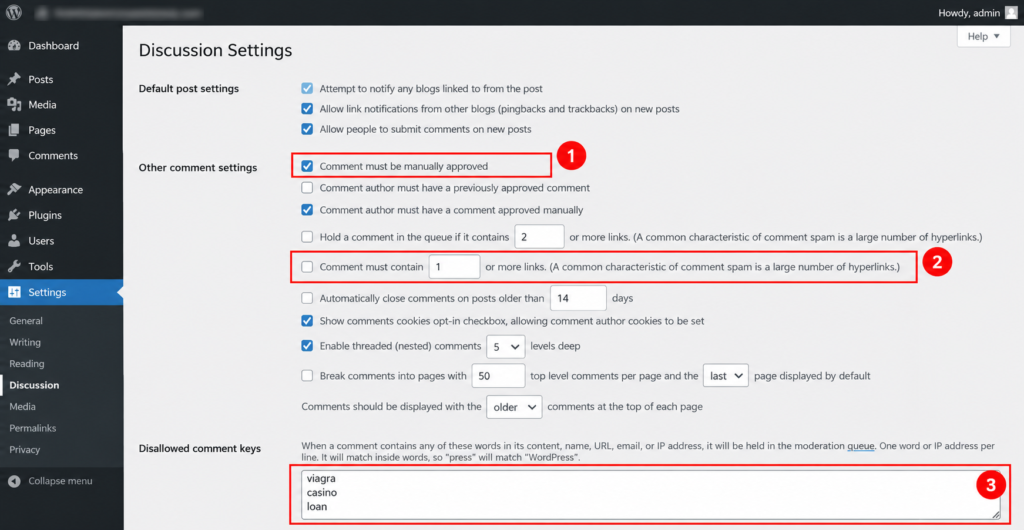
Under “Before a comment appears”, tick Comment must be manually approved. Nothing goes live until you’ve looked at it. You can also tick “Comment author must have a previously approved comment” so returning commenters skip the queue. The catch is that their comments never reach your moderation queue, so skim your published comments now and then.
In the Comment Moderation box, find “Hold a comment in the queue if it contains [X] or more links”. It’s set to 2 by default. Drop it to 1, because spam almost always carries a web address.
Next, fill the Disallowed Comment Keys box with words, names, emails or URLs, one per line. Matching comments go straight to the trash, so keep the list specific. A broad word like “loan” can catch a real reader.
Finally, under “Other comment settings”, tick “Comment author must fill out name and email”.
Pingbacks, old posts and open registration
Pingbacks and trackbacks are link notifications from other sites, and spammers abuse them to send fake ones. Untick “Allow link notifications from other blogs (pingbacks and trackbacks) on new posts” on the same screen.
Comments and pings are separate switches. MalCare points out that a site can still show spam near the comments after you thought you’d closed the form.
Two more settings are worth a minute. Tick “Automatically close comments on posts older than [X] days” and pick 30 or 90, which gives bots fewer old posts to hit. Then open Settings > General and untick “Anyone can register” if you don’t run a membership site or a store.
One gotcha trips up almost everyone. Turning comments or pings off in these settings only affects future posts. Posts you’ve already published stay open, and the WP-CLI snippet further down fixes that.
Why a single layer of WordPress spam protection fails

Here’s a pattern that shows up again and again in support forums. Someone adds a honeypot, then a CAPTCHA, then blocks a few IP addresses. The spam keeps coming.
On one security forum, a site owner stacked a honeypot, a copy-and-paste blocker and a CAPTCHA on a Contact Form 7 form. Marketing pitches kept arriving. The advice from other members was blunt: if a CAPTCHA doesn’t stop them, a human is probably typing the messages, so ban the IP address.
There are three other reasons one layer fails:
- Bots learn the old tricks. A form plugin’s support team said its older honeypot setting is being deprecated because modern bots know to skip the hidden field. They recommend its newer anti-spam option instead.
- A filter guards one door. WPBeginner’s guide notes that a plugin protecting only your comments lets bots simply move to your signup or contact forms.
- A honeypot needs code behind it. A forum reply makes the point well. Something on the server has to detect the filled hidden field, act as if the form worked, and not send the email. Keep a record of those rejects, because a real person can occasionally fill the field.
So treat WordPress spam protection as a stack of layers. Free WordPress settings come first. Then one filter plugin, a form-level check, a firewall, and regular cleanup. The sections below take each entry point in turn.
Stopping comment spam

Pick one filter plugin
A filter is the core of most WordPress spam protection setups. It checks every comment against outside data or local rules. Choose one. WPBeginner warns that running two spam filters at once can conflict and block real visitors.
| Filter | Cost shape | Account or key | Notes |
|---|---|---|---|
| Akismet | Personal plan is name-your-price. Commercial plans are paid. | API key | Pro was listed at $9.95 a month, billed yearly, for one site and 500 spam checks a month |
| Antispam Bee | Free | None | Local rules, privacy-friendly |
| CleanTalk | Free trial, then paid | Account | Covers forms and registrations too |
Akismet’s plans page lists the Personal plan for personal sites and blogs, and Pro for professional or commercial ones. A “spam check” is each time it scans a comment, form submission or other content. We read that pricing on October 6, 2026, and plans change, so confirm it before you buy.
If you pick Antispam Bee, open Settings > Antispam Bee. WPBeginner suggests trusting approved commenters, marking matches as spam instead of deleting them, using regular expressions and checking the local spam database. It also suggests leaving the spam email alerts off, because a busy site can get hundreds a day.
When to turn comments off instead
If comments add nothing to your site, the only fix that stops comment spam completely is turning them off. That’s the simplest WordPress spam protection there is, and a fair trade for a brochure site. It’s a bad one for a tutorial blog where readers ask useful questions.
The settings screen only covers new posts, so close the old ones in bulk. This WP-CLI command is for developers or anyone with SSH access.
Where it goes: run it in your server terminal, inside the WordPress folder, with WP-CLI installed. It isn’t theme code. It rewrites the comment and ping status of every matching post in your database, so back up first and try it on staging.
wp post list --post_type=post --comment_status=open --format=ids | xargs wp post update --comment_status=closed --ping_status=closed
wp post list --post_type=page --comment_status=open --format=ids | xargs wp post update --comment_status=closed --ping_status=closed
What you should see: one “Success: Updated post 123.” line per post.
We built this from community examples, such as a widely shared GitHub gist (linked in the references), and haven’t run it on a live WordPress install. Test it on a staging copy before production.
Stopping contact form spam

Use your form plugin’s own anti-spam
Contact forms get attacked more than almost anything else on a site. Good WordPress spam protection for forms starts with what your form builder already offers.
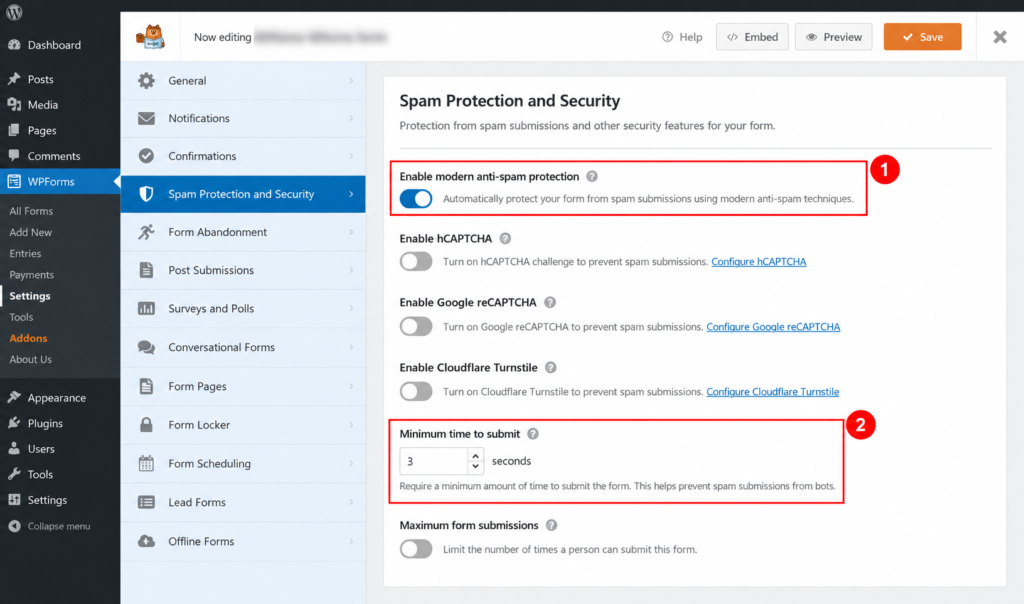
In WPForms, for example, open a form, go to Settings > Spam Protection and Security, and confirm “Enable modern anti-spam protection” is on. It attaches a time-sensitive token to the form on every page load. New forms have it on by default, but check. The “minimum time to submit” option defaults to 2 seconds, and you can raise it.
Other builders such as Gravity Forms and Fluent Forms have similar settings. Check them form by form, not just in the global settings. One user in a support thread found their honeypot wasn’t catching bots until they ticked a separate anti-spam option on the form itself.
Add Cloudflare Turnstile
Turnstile is a free CAPTCHA that runs its checks in the background, so most real visitors never solve a puzzle. The free Simple Cloudflare Turnstile plugin connects to a free Cloudflare account. Then tick the forms to protect in the “Enable Turnstile on your forms” section.
If you use WPForms, go to WPForms > Settings > CAPTCHA, choose Cloudflare Turnstile, and paste in the site key and secret key. Then add the CAPTCHA field to each form.
WPBeginner also says Google capped reCAPTCHA’s free tier at 10,000 assessments a month per organization, while Turnstile stays free without limits. Verify that on Google’s and Cloudflare’s own pages before you rely on it.
Any CAPTCHA has a cost. Some real visitors give up, so watch your form conversions after you switch one on.
Test that real messages still arrive
Send yourself a test enquiry from a phone, on mobile data and not your office wifi. Then check the spam log or entries screen of your filter or form plugin. WordPress spam protection that blocks real customers costs you more than the spam does.
If hand-typed sales pitches still get through, no bot filter will catch them, because a person is writing them. In that case use a keyword filter, or block the IP address or country if you only serve certain regions. WPForms Pro offers keyword and country filters, and WordPress lets you block IP addresses with a plugin or your host.
Stopping spam registrations, including WooCommerce fake accounts

Fake accounts do more damage on a store than a junk comment does. They clog your user list and distort your reporting. Bots can churn out thousands of them, often unnoticed. WordPress spam protection for registrations is about stopping accounts, not just messages.
Turn registration off, or confirm every email
If you don’t need accounts, go to Settings > General and untick “Anyone can register”. If you do need them, the setting that stops the most fake signups is a confirmed email address, or manual approval, before the account goes live.
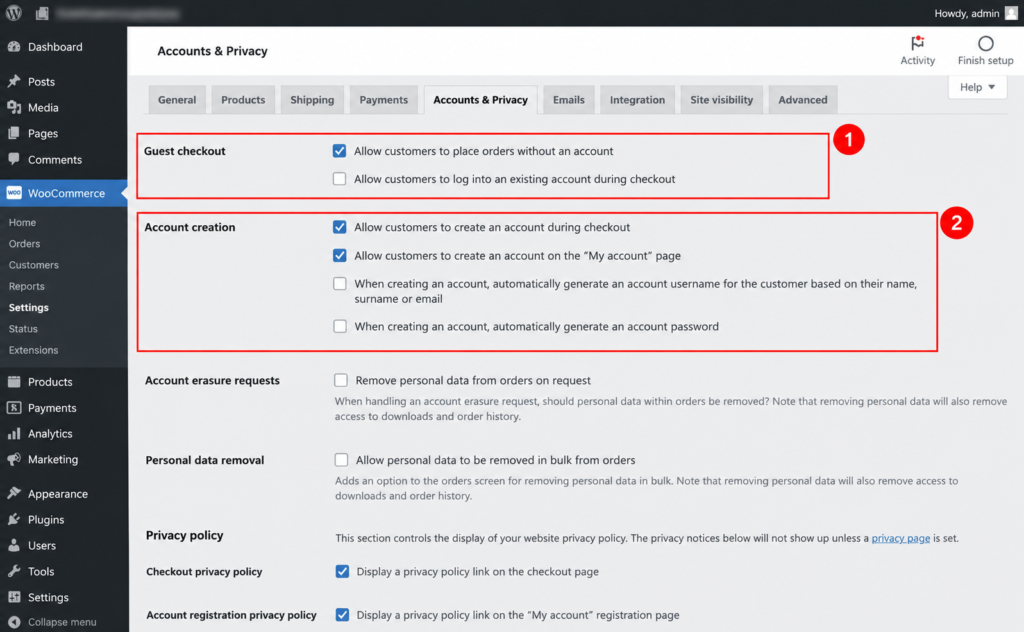
On WooCommerce, open WooCommerce > Settings > Accounts & Privacy. There you choose whether shoppers can create an account at all, whether accounts are created only at checkout, or whether guest checkout stays on. WooCommerce core doesn’t add an email-confirmation step on its own. You’ll need a customer email verification extension or a custom registration form.
Membership and course platforms each handle this differently:
- BuddyPress and BuddyBoss: email activation is built in.
- MemberPress: pair it with the free User Verification plugin.
- LearnDash: there’s no native confirmation, so add the check at the WordPress or form level.
- WPForms User Registration addon: turn on email activation or manual approval in the form’s settings.
Protect every sign-up form
Put a CAPTCHA on all the places where someone can create an account, not just the obvious one. A case write-up from Freshy Sites describes over 1,000 spam accounts piling up until reCAPTCHA was confirmed on every registration entry point, not only the default WooCommerce forms.
For the default WordPress registration page, a free honeypot plugin such as WP Armour adds hidden fields. To catch throwaway email addresses and bad IPs, use a service like CleanTalk or ActiveLayer. Both screen signups against live reputation data.
If your store has custom account pages or a bespoke checkout, the protection has to sit where the form actually lives. That’s the kind of fix our WooCommerce development team handles.
Adding a firewall layer

A web application firewall screens every visitor and blocks malicious requests before they reach your site. Most form spam is automated, so a firewall can stop a lot of it at the edge.
WPBeginner recommends a DNS-level firewall and uses Cloudflare, whose free plan includes basic firewall protection. The tradeoff is that setup means pointing your domain’s nameservers at Cloudflare. That’s a real change, so schedule it at a quiet time.
A firewall is one layer of WordPress spam protection, and it doesn’t replace form protection. A Swiss hosting provider’s guide makes the same point: a form still needs its own anti-spam mechanism inside WordPress. Skip the firewall for now if you run a small brochure site with one form and a working filter. Add it when spam keeps coming despite the other layers.
Cleaning up the backlog safely

New WordPress spam protection doesn’t remove the junk you already have. Clean it out, but take it slowly.
First, create a full backup. Bulk deletes are permanent and have no undo.
Then work through these in order:
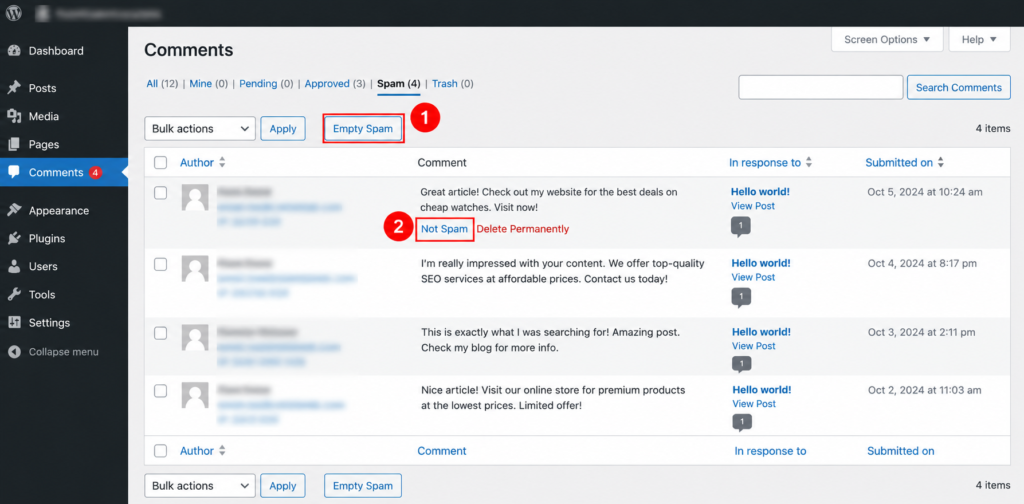
- Scan for real messages. Open Comments > Spam and skim before emptying. If a real comment landed there, hover over it and click “Not Spam”. That also teaches your filter.
- Empty the spam folder. Click “Empty Spam” at the top of that screen. With thousands of comments the dashboard can time out, and a free plugin such as WP Bulk Delete handles big backlogs better.
- Remove fake accounts. Go to Users > All Users, filter by the Subscriber role (where most registration bots sit), select the fake ones and choose Delete from Bulk actions. Never select an Administrator account.
- Set a monthly check. Spend a few minutes skimming your spam folders and your newest registrations for gibberish usernames.
A layered setup by site type
You don’t need every layer of WordPress spam protection on every site. Match the stack to what you run.

| Site type | Do first | Add if spam persists |
|---|---|---|
| Personal blog, comments only | Discussion settings, one filter | Turnstile on the comment form |
| Business site with a contact form | Form plugin’s anti-spam, Turnstile | A filter that covers forms, then keyword or IP blocking |
| WooCommerce store | Registration and guest checkout settings, email verification | Turnstile on every sign-up form, a firewall |
| Membership site or forum | Email confirmation, honeypot, filter | Login-to-comment, a firewall |
A word on requiring login to comment. It works well on membership sites and forums. On an open public blog it adds friction, so a filter is usually the better choice there.
Frequently asked questions

Is free Akismet-style filtering enough, or do I need more?
For a personal blog with only comment spam, one filter is usually enough. Akismet’s free Personal plan is meant for non-commercial sites. Once you add contact forms, signups or a store, pick a tool that covers those entry points too, and check current pricing on Akismet’s plans page.
Will adding a CAPTCHA hurt my form conversions?
It can. The extra step makes some real visitors abandon the form. Turnstile reduces that, because it runs its checks in the background and most people pass without solving anything. Watch your form submissions for a couple of weeks after you switch it on.
Why am I still getting spam after installing an anti-spam plugin?
Single-plugin WordPress spam protection usually guards only one entry point, so bots move to another. Basic honeypots also no longer stop modern bots. Layer your defences: the free WordPress settings, one filter, a form-level check and a firewall. Also remember that some form spam is typed by hand.
How do I stop fake user registrations without turning signups off?
Require email confirmation, so accounts stay inactive until the person clicks a link in their inbox. Add a CAPTCHA on every sign-up form and a honeypot or a reputation-based filter. Real people can still register freely, and most bots can’t finish the confirmation step.
Can spam hurt my SEO or get my site blacklisted?
It can, but it depends where the spam sits. Comments held in the moderation queue are never published, so search engines don’t see them. Published spam is the real risk. WordPress adds nofollow to comment links, which limits the damage.
Get a second pair of eyes on your forms
Start your WordPress spam protection with the free settings today, add one filter, and test a real enquiry before you walk away. If you’d rather not do it yourself, or your forms and registrations are custom-built, get in touch with us and we’ll audit them with you. You can also see the work we’ve delivered or read more WordPress tutorials on our blog.